Last updated: October 15, 2026
For webinar registration, define the event and fields, draft the form, review the preview and publishing conditions, submit a test, and inspect the registration list. FORMLOVA Free covers creation, publishing, response collection, status handling, and CSV/Excel export. Add custom confirmation emails, reminders, or Sheets sync on Standard or above when the event needs them.
Draft One Webinar With Explicit Registration Rules
Use one free webinar as the first test. Define whether submission confirms attendance, how many people one response represents, and how the organizer will provide access information.
Draft a free webinar registration form for November 18 at 14:00 Japan time.
Require name, email, and session choice. Make an advance question optional.
One response registers one person; no guests. Submission is a request received,
and the organizer will confirm attendance and the joining link separately.
Show me the draft, completion message, and required fields before publishing.
Do not send emails, set reminders, or connect Sheets.
Replace these example details with the actual event. Review and manually publish a test form, then use your own address for two fictional registrations. Find the records, confirm the selected session, and export them to CSV/Excel. Check the form fields and submission time in the export; verify internal status separately in response management.
Try webinar registration through the saved attendee records
The free plan covers the draft, publishing, collection, search/status, and CSV/Excel output. Check one registration path before adding paid email or sync.
Sign up free to draft a webinar registration form
Sign up, verify your email, and connect a supported AI client. Use the draft request above, review it, and publish a test form when ready. Your AI client’s access and fees follow its provider’s contract.
For more detail on the draft step, use Draft a Form in One Shot with FORMLOVA. For capacity and guest rules, use the event registration guide.
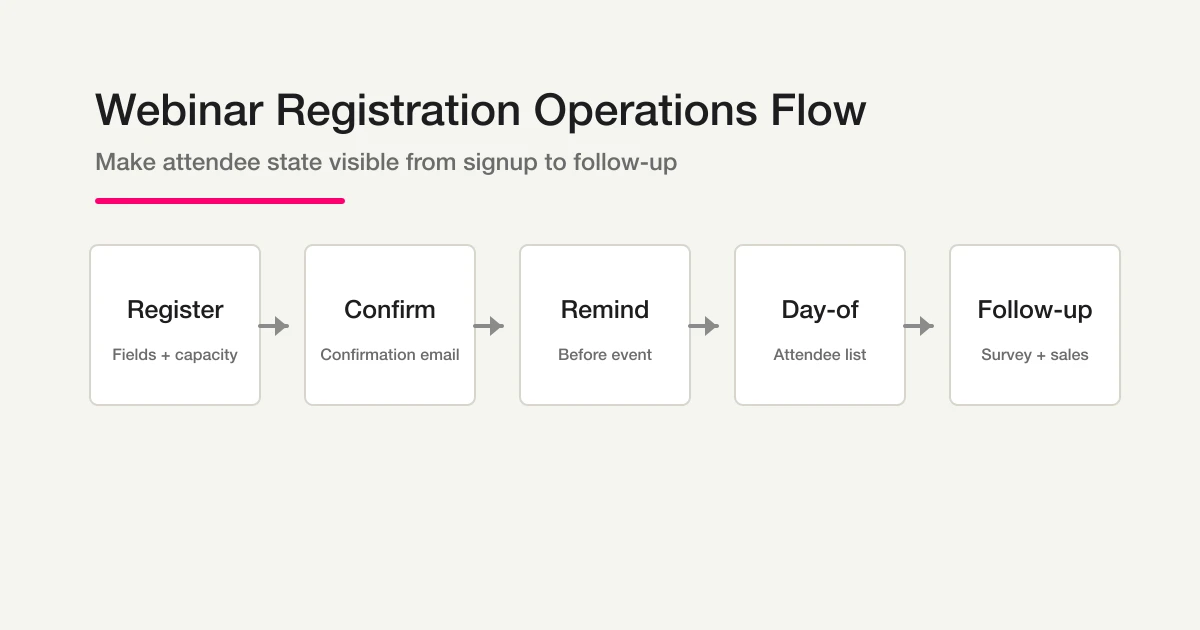
The full event plan may also include confirmation, reminders, and follow-up. These stages are shown as an operating map; the free trial above covers registration and response handling, while the email stages have the plan conditions described below.
Then Match the Form to the Look of the Webinar Page
Once the draft exists, the next step is visual alignment. In practice, that usually means matching the form to a landing page, brand page, or existing webinar page.
Read this next:
Send a screenshot, review the colors and tone it suggests, then refine the result. Confirm the actual labels and mobile contrast; the screenshot is a reference rather than a guarantee of identical reproduction.
Add Participant Email When The Event Requires It
Decide how the joining instructions will be delivered. The free test above uses a completion message and separate organizer contact. If you need a custom automated message, add it on Standard or above and test the actual content and delivery before distribution.
Read this next:
This is a Standard plan or above feature. The guide shows how to generate a draft message first and then refine the tone with short natural-language instructions.
Publishing Should Happen Through Review, Not Through Guesswork
Once the form and any required communication plan are ready, review it before publishing. But publishing in FORMLOVA is not just a blind final action. It walks through preview checks, thank-you page review, duplicate-prevention settings, and privacy policy confirmation.
Read this next:
This guide also shows that publishing does not have to be the end of the workflow. For a free-to-answer published form, you can request its URL or iframe code. Paid-event forms use a separate paid feature and the common MCP does not return purchase-flow public URLs or embed code. Confirm distribution in the dashboard when using that route.
After Launch, You Need to Review and Move Responses Forward
Once the webinar form is live, the real operational work starts. You need to see who registered, inspect relevant details, narrow responses down to the people who need attention, and move those records into a new status.
Read this next:
That guide covers the post-publish flow: list responses, filter them, inspect the details, update each selected response ID, and retrieve it again to confirm the result. When requesting several updates, check the outcome for each record rather than assuming one atomic batch succeeded.
Then Decide Whether to Export the Data or Keep It Synced
At that point, the next question is where the response data should go.
Read this next:
This guide explains the difference clearly:
- CSV is for pulling out the current data now
- Google Sheets is for keeping future data synced automatically
Google Sheets sync is a Standard plan or above feature, and it works best when connected before new responses start arriving.
Finally, Learn When to Ask Chat and When to Open the Dashboard
Once the workflow is running, you will keep checking the current state. FORMLOVA works best when you understand the split between chat and the dashboard.
Read this last:
The short version is simple: use chat when you want a quick answer, and use the dashboard when you want to visually inspect lists, analytics, and settings.
If You Are Not Sure Where to Start, Use This Reading Order
If your goal is to create and publish a webinar registration form end to end, this is the recommended order:
- Draft a Form in One Shot with FORMLOVA
- Match a Form Design from a Screenshot with FORMLOVA
- Review a Form Before Publishing with FORMLOVA
- View, Filter, and Update Response Status with FORMLOVA
- Export Responses to CSV or Sync Them to Google Sheets with FORMLOVA, with free CSV or Standard+ Sheets
- Check the Current Status in Chat and in the Dashboard with FORMLOVA
- Create and Refine Auto-Reply Emails with FORMLOVA, if custom email is needed on Standard or above
That sequence covers the whole arc from creation to post-launch operations. You do not need to learn everything at once. Just start from the step you are on, and use the next guide as the next move.
Related Workflows You Can Use
For a webinar flow, Event Reminder + Follow-up is the core Workflow Place route. It connects signup, reminder, and follow-up so the webinar does not end as a passive registration list.
If you want the full sequence, add Seminar Registration to Survey and Slack Notification + Sheets Log. Those workflows cover internal visibility, attendee handling, and the post-event survey loop.
Related Articles
- Most Form Tools Stop at Creation -- FORMLOVA Starts After Publish
- Route Post-Publish Responses by Intent and Send Hot Leads to Sales
- Webinar Registration Management: Signup, Reminders, and Follow-Up
- Event Registration Form Guide -- Signup, Capacity, Reminders, and Check-In
- How FORMLOVA Compares to Major Form Services
- Find a Recipe in Workflow Place and Set It Up From Chat
On October 15, 2026, plan boundaries and the corresponding current tool implementations were checked for this rewrite. Existing screenshots and demonstration counts are retained as previously published examples, not new execution results. New draft requests are proposed tests; the saved responses and any delivery must be verified in your own run.
Disclosure and Verification
This article is part of the FORMLOVA product blog. The author is the developer of FORMLOVA. Product facts, pricing, limits, and comparison claims should be checked against the current FORMLOVA spec, plan definitions, and relevant primary sources before publication or major updates. For privacy, hiring, legal, medical, or financial workflows, follow your organization's policies and specialist review.
