
Last updated: October 15, 2026
To check a FORMLOVA form, ask chat for its identity, publication state, and response count, then inspect the relevant responses or settings in the dashboard when needed. Chat is the primary operating surface; the dashboard helps with monitoring and detail checks. Keep basic free analytics separate from paid traffic and email analysis.
Ask For A Defined Status Check
Start with a form you can identify by name or ID. Ask what should be checked rather than requesting every available metric at once:
For this form, show its title, publication state, response count,
and current response statuses. Fetch current records; do not change settings.
For a first free-plan test, create a small form:
Draft a request form with required request category (product / price / other)
and a required message. Keep email optional. Show the draft before publishing.
Do not configure emails or integrations.
Review and publish it, then submit two fictional responses. Ask for the count and IDs, move one confirmed ID to In Progress, and retrieve it again. Open the same form in the dashboard and compare the count and that status. Record the form and the time of each check so later arrivals are not mistaken for a mismatch.
Creation, collection, response search/status, basic analytics, and CSV/Excel are Free features. Traffic analysis, detailed analytics, customized email operations, and Sheets sync require Standard or above. A basic status question should not imply every paid metric is included.
Compare one form’s current state in chat and the dashboard
Use two test responses to check the count, a saved status change, and the matching form in the dashboard on the free plan.
Sign up free to try a form status check
Sign up, verify your email, and connect a supported AI client. Use the draft request above, review it, and publish a test form when ready. Your AI client’s access and fees follow its provider’s contract.
If You Want to See the Response Surface, the Dashboard Is Better
The response list is a good example of where the dashboard becomes more natural.
In the dashboard screenshot, the response table shows statuses, names, email addresses, participant counts, traffic source, and submitted time in a visual list. That is a different kind of understanding than a text summary. It lets you scan.
This does not mean chat is weak. Chat is still great for things like “show me only the people with participant count = 3.” But if you want to visually review the whole surface of the incoming responses, the list view is faster. The guide to view, filter, and update response status shows the chat side of that workflow in more detail.
That is the distinction I would give users: chat is for asking, dashboard is for scanning.
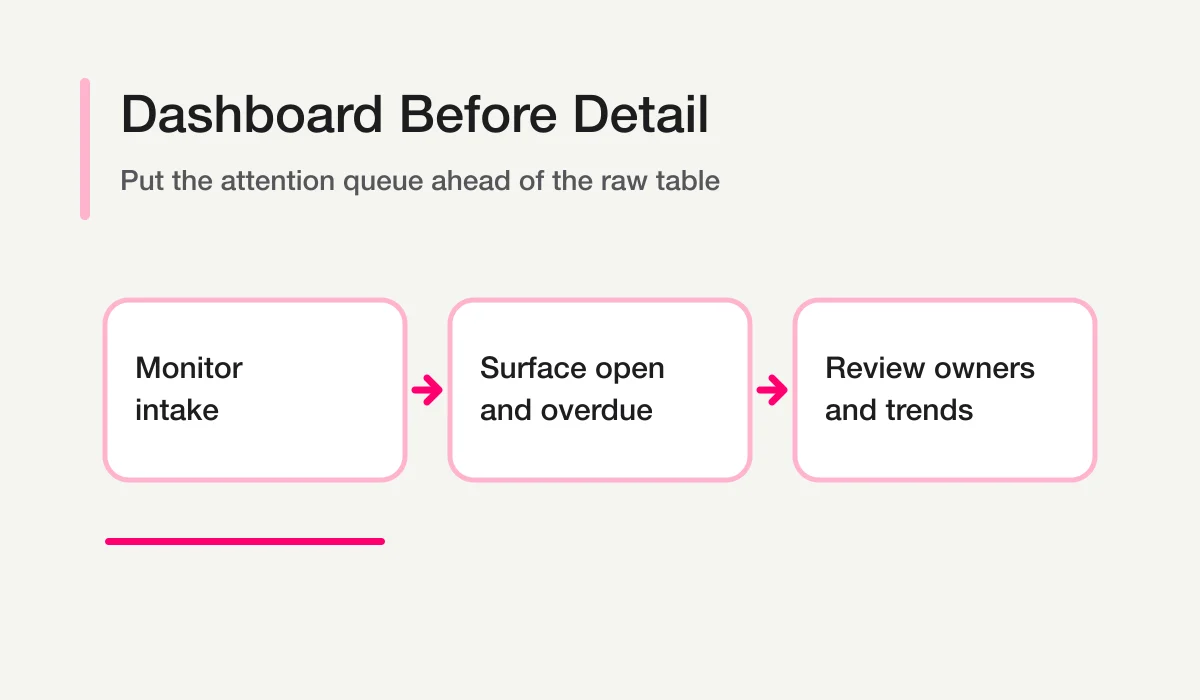
A monitoring view starts with incoming work and the items that need attention. The following is a design diagram, not a screenshot or a promise that every monitoring feature is included on Free.
Analytics Also Follow the Same Split
Start with the response count and basic distributions. Conversion, traffic, and email performance need the corresponding paid feature and a defined period; do not infer them from a short response list. If the next step is sharing or spreadsheet analysis, continue to the guide on how to export responses to CSV or sync them to Google Sheets.
But if you want to inspect trends and distributions visually, the analytics tab is more useful. In the dashboard example, you can see 30-day response counts, recent 7-day volume, daily submission charts, traffic sources, email delivery state, and field-level distributions.
That is why analytics follows the same rule:
- ask chat when you want the headline numbers
- open the dashboard when you want to interpret the patterns
I think that is a much more practical mental model than pretending one surface should do everything.
Email and Form Settings Are Easier to Confirm Visually
The same applies to settings.
Ask for the setting you actually enabled. For custom auto-replies or Google Sheets on Standard or above, inspect the saved setting and then test delivery or a new synchronized row separately. A connection flag does not prove that historical responses were imported.
This is also important for form automation. Auto-replies, spreadsheet sync, notifications, and reminders are not one-time setup tasks. After launch, the team still needs a reliable way to ask what is enabled, what ran recently, and what needs attention. The FORMLOVA form automation guide covers that broader model.
But if you want to inspect exactly which email template is active, what the access restriction looks like, whether duplicate prevention is enabled, or what the current form settings are, the dashboard is the better tool. In the example screenshots, the email tab and the settings tab make those states much easier to confirm at a glance.
This is where the earlier product philosophy becomes operational. Work happens in chat. State confirmation happens in the dashboard.
This Is the Only Rule You Really Need
If you want the simplest version of this guide, it is this:
- use chat when you want to ask for the current state
- use the dashboard when you want to visually inspect the state
So prompts like:
Please tell me the current situation in detail.What is the response status for this form?Is auto-reply enabled?
fit naturally in chat.
But if you want to:
- scan the response list
- review graphs and distributions
- confirm multiple settings in one view
the dashboard is the better fit.
That is the main takeaway I want this guide to give. FORMLOVA is not trying to force everything into chat. Chat is the primary surface, and the dashboard is the secondary surface for confirmation and overview. Once you understand that split, the product becomes much easier to use well.
Related Workflows You Can Use
If the status question is really "who should own this response next?", start with Inquiry Owner Assignment. It keeps response status from becoming a passive label by assigning ownership as part of the route.
For unresolved queues, combine it with Unhandled Response Reminder or AI Response Report. Those workflows make status visible enough to act on without opening every response one by one.
Related Articles
- MCP Form Service Guide
- FORMLOVA Form Automation Guide
- Why FORMLOVA Still Has a Dashboard
- View, Filter, and Update Response Status
- Most Form Tools Stop at Creation -- FORMLOVA Starts After Publish
- Route Post-Publish Responses by Intent and Send Hot Leads to Sales
Related next steps:
On October 15, 2026, plan boundaries and the corresponding current tool implementations were checked for this rewrite. Existing screenshots and demonstration counts are retained as previously published examples, not new execution results. New draft requests are proposed tests; the saved responses and any delivery must be verified in your own run.
Disclosure and Verification
This article is part of the FORMLOVA product blog. The author is the developer of FORMLOVA. Product facts, pricing, limits, and comparison claims should be checked against the current FORMLOVA spec, plan definitions, and relevant primary sources before publication or major updates. For privacy, hiring, legal, medical, or financial workflows, follow your organization's policies and specialist review.
