
Last updated: October 15, 2026
To manage FORMLOVA responses, identify the form, filter the records, verify each response ID, update its status, and read it again. Search and status management are available on Free. Confirm IDs before editing so a repeated name or an old conversation result does not select the wrong record.
Start With A Small Status-Management Test
Use a separate test form rather than experimenting with customer records. After connecting your AI client, request:
Draft a workshop inquiry form with required name, request category
(schedule / price / other), and message. Keep email optional.
Show the fields before publication. Do not send emails or set automation.
Review and publish it, then submit two fictional responses with the same name but different request categories. This deliberately checks whether you can distinguish records by ID and contents rather than by name alone.
Show new responses for this form with response ID, category, and submitted time.
Find the price inquiry and show its current status.
After I confirm its response ID, change only that response to In Progress.
Retrieve that response again so I can verify the saved status.
Search and status changes are free. The current update operation applies to one response ID at a time; when you ask to update several records, confirm the outcome for each ID. Do not assume that a multi-record instruction creates one atomic batch or that a cached list proves the saved result.
Try finding and updating the right inquiry
Create two test inquiries, select the correct record by ID, and verify its saved status on the free plan. A status change is distinct from a reply or a notification.
Sign up free to try response status management
Sign up, verify your email, and connect a supported AI client. Use the draft request above, review it, and publish a test form when ready. Your AI client’s access and fees follow its provider’s contract.
Filtering Makes the Next Action Clear
Once the full list was visible, the next prompt was:
Show me the names of the people whose participant count is 3.
The previously published example narrowed its demonstration data to two people:
- Naoki Kobayashi
- Hanako Suzuki
This is where the workflow starts feeling operational rather than informational. In practice, you rarely want every response all the time. You want the subset that needs action now. In an event workflow, that might mean everyone who selected a certain attendance type. In an inquiry workflow, that might mean everyone asking about pricing. In a survey workflow, that might mean only low-scoring respondents. If the next step is reporting or spreadsheet work, pair this chat flow with the guide to export responses to CSV or sync them to Google Sheets so you can separate quick triage from deeper analysis.
That is why filtering matters more than the initial list. The list gives you the landscape. The filter tells you where to act next.
If You Already Keep Google Forms Edit Response URLs
Teams that run Google Forms with Google Sheets sometimes keep an edit response URL or a return URL for each response. With Apps Script, getEditResponseUrl() can help a Slack notification or a Sheet row open the original response again.
That URL is useful, but it is different from status.
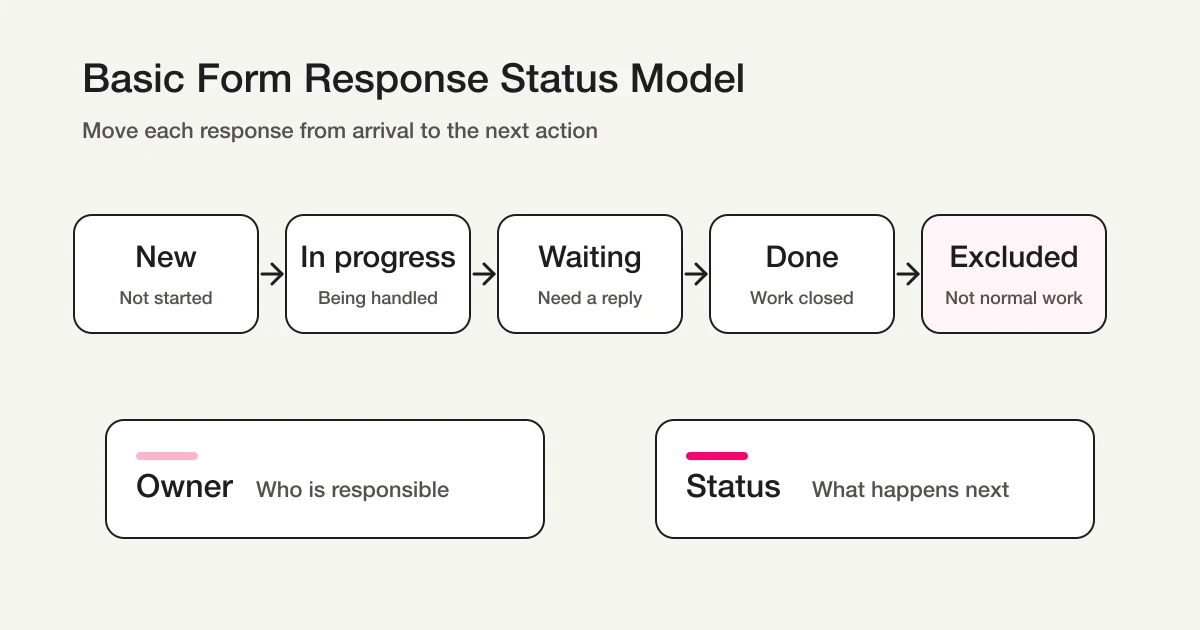
The edit response URL is the place to return to. Status is the operational state: New, In Progress, Resolved, or Spam. If those ideas are collapsed into one field, the team can reopen a response but still cannot tell whether anyone is handling it.
If you stay in Google Forms for now, keep status, owner, and last_updated_at separate from the return URL. That makes the workflow easier to migrate into FORMLOVA later, because the response location and the response state are already separate concepts.
The Apps Script reference describes an edit link for a submitted answer. Share it only with people allowed to edit that response; it is not a harmless status-only bookmark.
The diagram below is an operational design model, not a list of selectable FORMLOVA statuses. Its waiting/done/excluded concepts must be mapped to the actual New/In Progress/Resolved/Spam states and your handling notes.
Inspect The Record Before Changing It
Ask for the details of the response IDs returned by the filter. Check the request, timestamp, and current status. Only bring the information needed for that decision into the AI conversation. Contact details may be masked by the retrieval tool; do not assume every response view exposes a full email or phone number.
A useful request is “Show the category, message, time, and current status for these response IDs.” Use the form and response IDs again if the conversation has moved on or the form has changed. Reading a current record is stronger evidence than the AI saying it remembers an earlier result.
Verify Each Status Update
The current response statuses are New, In Progress, Resolved, and Spam. The corresponding stored states are new, in_progress, resolved, and spam.
For the selected inquiry, ask to set In Progress and then retrieve that ID again. If several responses need the same state, list the target IDs explicitly and check the result for each. A successful update for one record does not prove the other records changed.
A status is an internal handling state. It does not by itself send a reply, notify Slack, or establish that a human has completed the task. Decide the separate reply or notification rule before adding it to the workflow.
This Is the Core Flow to Remember
If you want the simplest version of this guide, it is this sequence:
- Identify the form and retrieve response IDs.
- Filter by the required answer or status.
- Confirm each target ID and update only those records.
- Retrieve the same IDs again and verify their saved status.
That one flow covers the essential pieces of response operations:
- list the responses
- narrow them down by a condition
- inspect the details
- update the status
Use conversation context to specify your target, then retrieve current records and verify saved updates. The earlier demonstration is not a guarantee that an AI client will always avoid another retrieval.
That is a strong starting point for post-publish operations. Once the form is live, this is the kind of workflow that makes the product feel useful every day. If you need the whole post-submit sequence first, read Post-Submit Workflow. If you also need to set expectations immediately after submission, use the form auto-reply email examples; if you want to design routing, Sheets sync, reminders, and status updates as one workflow, use the FORMLOVA form automation guide; if the goal is sales handoff, continue into the guide on routing post-publish responses by intent and sending hot leads to sales.
Related Workflows You Can Use
To review status and request the next action in chat, use Inquiry Auto-reply + Escalation as a starting route. Check the target and requested operations before running it.
For team ownership, add Inquiry Owner Assignment. If the queue is noisy, Urgent Inquiry Keyword Alert and Sales Pitch Filtering Workflow help separate urgent work from low-value responses.
A Workflow page supplies reusable chat instructions. Run them in an active client session and check any external MCP connections, permissions, and provider requirements. Opening a recipe does not save a status-change listener or a recurring job. Automatic processing needs a supported saved setting or a separately configured scheduler, followed by verification of the actual run.
Related Articles
- Form Creation Guide -- Choose Templates, Fields, and Workflows
- FORMLOVA Form Automation Guide -- Auto-Replies, Routing, Sheets Sync, and MCP Operations
- Contact Form Response Management Guide -- Owners, Status, Sales Spam, and Follow-Up
- Create and Publish a Webinar Registration Form with FORMLOVA
- Google Forms + Sheets + Apps Script Operations -- Where Notifications, Auto-Replies, and Status Should Live
- Export Responses to CSV or Sync Them to Google Sheets with FORMLOVA
Related next steps:
On October 15, 2026, plan boundaries and the corresponding current tool implementations were checked for this rewrite. Existing screenshots and demonstration counts are retained as previously published examples, not new execution results. New draft requests are proposed tests; the saved responses and any delivery must be verified in your own run.
Disclosure and Verification
This article is part of the FORMLOVA product blog. The author is the developer of FORMLOVA. Product facts, pricing, limits, and comparison claims were checked against the current FORMLOVA spec, plan definitions, and relevant product notes on June 18, 2026. The Google Forms edit response URL note was checked against Google's Apps Script reference on June 18, 2026. For privacy, hiring, legal, medical, or financial workflows, follow your organization's policies and specialist review.
