
Last updated: October 15, 2026
Use FORMLOVA from Claude Desktop by checking client access and permissions, registering the official MCP endpoint, authorizing your FORMLOVA account, then inspecting a saved draft. A list of proposed fields in chat is not evidence that a form was created. Begin with one private business inquiries draft and verify the saved target.
FORMLOVA registration, drafts and preview are available on Free. The AI client's eligibility, subscription and usage conditions are separate.
Before connecting
- Have a FORMLOVA account with verified email.
- Check the client's MCP support, account eligibility and organization policy.
- Decide whether the setup is personal or shared, and identify the intended form.
- Use the official endpoint below; do not paste credentials into chat or shared configuration.
https://formlova.com/api/mcp
Add a remote connector in Claude Desktop
Open Customize > Connectors, add a custom connector named FORMLOVA, and enter the official URL. Review detected authentication, complete FORMLOVA sign-in/authorization in the browser, and enable the connector for the conversation.
Current Claude documentation includes Free, Pro, Max, Team and Enterprise; Claude Free allows one custom connector. Organization owners or eligible administrators add organization connectors before individual members connect. This is separate from FORMLOVA plan eligibility.
Remote account connectors are distinct from local stdio entries in claude_desktop_config.json. Do not mix those mechanisms. Inspect connection status and begin with a form-list request before creating anything.
After connecting, test a business inquiries draft
This is a proposed trial, not an operation or result measured for this rewrite. Use a private test draft first.
Create a private business inquiry form with name, email, category (buying enquiry / existing-user question / other), and message. Make company optional. Propose an achievable reply timeframe and completion text. Show the saved name, fields, required rules and preview. Do not publish, configure email or send.
Before proceeding, check:
- Is there an actual saved form with the intended name, fields and private state?
- Do required rules, logic and completion copy match the purpose?
- Can you check input on mobile and desktop? Preview submission does not test production storage or email delivery.
Create your first intake in Claude Desktop
Free supports drafts, preview, response review and CSV/Excel export after publishing. Custom auto-replies, reminders and other operations require Standard or above.
Register, verify your email, connect a supported AI client, and paste the proposed request above. Check the saved draft before publishing. AI-client account and usage requirements apply separately.
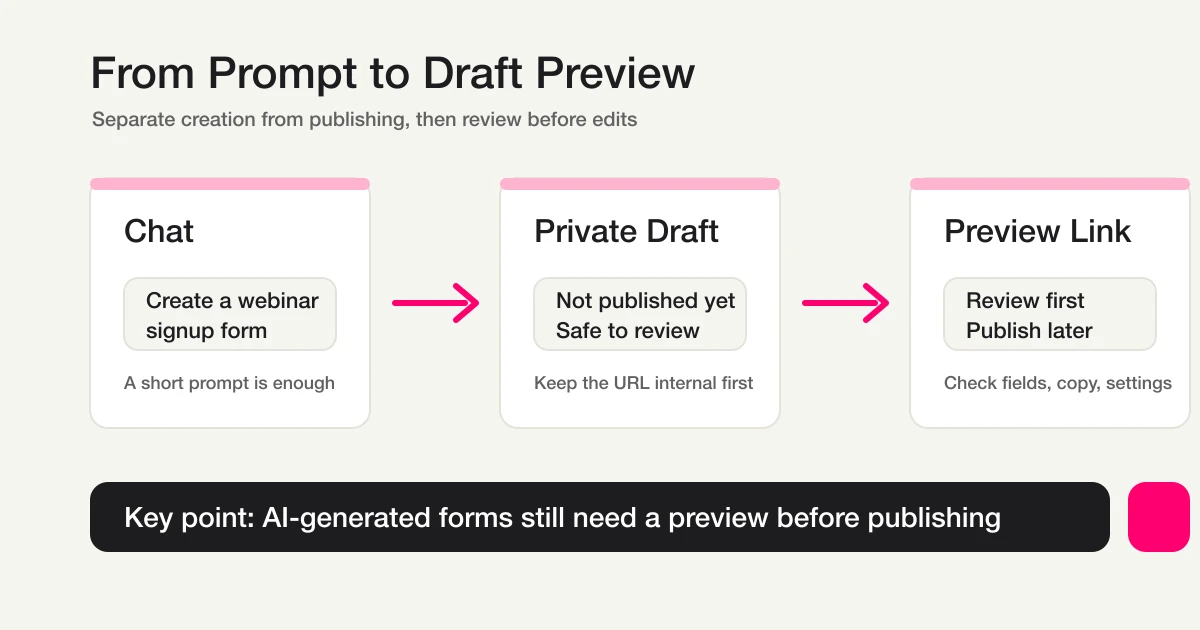
This existing conceptual diagram shows the draft-checking stage; it is not a screenshot or measurement of this article’s proposed test.
Move from draft review to publishing
Inspect the saved fields, required rules and choices, then open form and completion previews. Review instructions, consent, intended audience, duplicate prevention and privacy requirements. Request publishing explicitly after the checks; initial review and final publication are separate stages.
Eligible new forms with supported free-text inputs default to sales detection enabled. Review the setting and external-AI processing; disable it when unsuitable. Classification is after storage and excludes paid/selection-only forms.
After publishing, submit authorized test data to verify actual storage, workflow execution and send results separately. Opening preview does not prove live collection or delivery.
Separate operations from plan eligibility
| Job | Evidence to check | FORMLOVA plan |
|---|---|---|
| Find responses and change status | Identify actual records; retrieve again after updating | Free |
| CSV/Excel export | Form fields and submission time; not guaranteed status/response-ID columns | Free |
| Custom replies/reminders | Target, copy, time, quota and saved settings | Standard or above |
| Detailed analysis/native Sheets sync | Data scope and saved configuration | Standard or above |
| Teams/bulk campaigns/paid forms | Feature requirements; payment setup in dashboard | Premium |
Response statuses are new, in_progress, resolved and spam. Keep business stages such as confirmed or awaiting a reply in retained tags/notes or an external ledger. Preserve existing notes/tags and do not mark unfinished work complete.
MCP email/phone displays are masked. Do not use them as raw recipients or manual joins; use authorized exports, supported response-recipient tools or server-side integration. Free response notifications are a six-hour owner digest and do not consume outgoing-mail quota. They are separate from per-form immediate notification or paid email workflow actions.
Workflow Place prompts do not automatically start continuous monitoring. Distinguish a single run from triggers, schedules and destinations actually saved.
Troubleshoot in order
Check URL, configuration syntax/scope, account, OAuth, enabled tools, form permissions, then feature eligibility. Refresh tool discovery using the client's current official procedure where necessary. After uncertain writes, retrieve the saved object before retrying to avoid duplicate forms or sends.
Questions and next step
Does connecting unlock paid features? No. Connection and feature eligibility are separate; start with the free draft.
Is every client interface identical? The server URL is shared, but permissions, available tools, UI and confirmation behaviour depend on the client/account.
What should I try first? Create the proposed intake, inspect the saved draft and preview, then add only the operations you need.
Current official references
Related Guides and References
- Most form tools stop at creation
- ChatGPT form builder guide -- create a private draft from one short prompt
- Review a form before publishing
- How to view, filter, and manage form responses
- How to find and apply Workflow Place recipes from chat
- Slack Notification + Sheets Log
- Response to HubSpot Contact
- Response to Notion Database
- MCP Form Service Guide -- From AI Creation to Form Operations
- Claude Code FORMLOVA Guide -- From One CLI Command to Form Creation, Publishing, and Operations
- Cursor FORMLOVA Guide -- From IDE MCP Setup to Form Creation, Publishing, and Operations
- FORMLOVA with ChatGPT Guide -- Developer-Mode Custom Connector to Form Operations
- FORMLOVA with Gemini CLI Guide -- One
gemini mcp addCommand to Form Operations - Anthropic: How do I connect to remote MCP servers from Claude Desktop?
- Model Context Protocol: Introduction
- Claude: Building agents that reach production systems with MCP
Disclosure and Verification
This guide is written by FORMLOVA's developer. Client connection steps were checked on October 15, 2026 against current official documentation and local setup code; product features were checked against SPEC and plan definitions. Where older local instructions differ, this article follows the current official flow. This rewrite did not execute a new connection, publication or send; the trial request is a proposal.
